
Only the text over the camera
The image or video background you use in Zion also shows in OBS. To leave only the text on the livestream, project without a background using “Clear background” in Backgrounds.
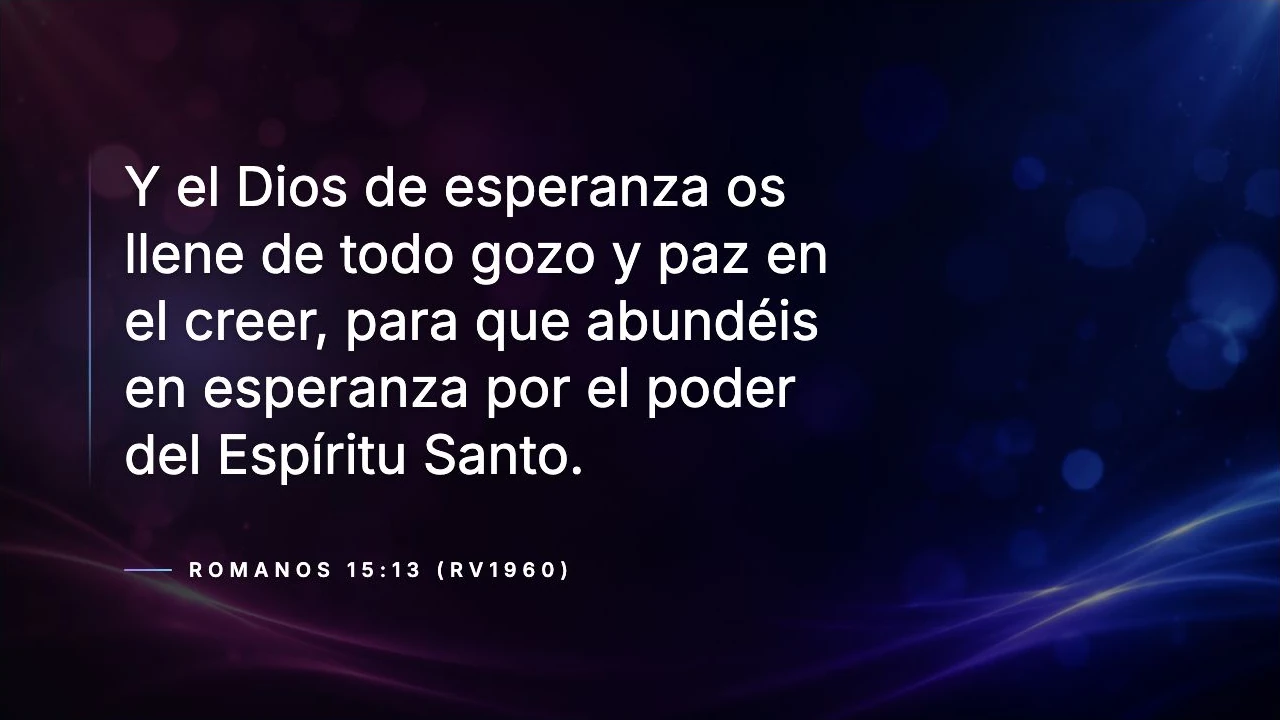
Zion Presenter sends lyrics and verses to OBS Studio with no background, so they appear over your camera on your Facebook or YouTube livestream. No green screen, and from the same computer you project with.
In Zion, open Displays and, under Link, copy your room’s display address.
In Sources, click + › Browser, paste the link and set it to 1920 wide and 1080 high, or your stream’s size.
Keep the Zion source above your camera in the list of sources. Zion recognizes OBS and removes the black background on its own.
What you show in Zion appears in the sanctuary and on the livestream at the same time: songs, verses and the sermon.
The image or video background you use in Zion also shows in OBS. To leave only the text on the livestream, project without a background using “Clear background” in Backgrounds.
Use a Web Browser input with the same link and add &obs=true at the end, so it removes the black background.
In Displays, the OBS display shows up with its name and size. You can give it its own margin.
With Blackout, OBS doesn’t get a black screen over your camera: the text goes away and the camera stays.
In Displays, turn on “Send over NDI”, give it a name and a size, and choose “Transparent background” so only the lyrics go out, without the photo or video background. OBS receives it as an NDI source with the free DistroAV plugin; vMix and NDI video switchers find it on the network by themselves. The first time, the computer asks whether Zion Presenter can use the network: choose “Allow”.
Add the display link in OBS as a Browser source, as in the four steps. With the DistroAV plugin, give the scene the “DistroAV NDI Output” filter and OBS sends it over the network, transparency included.
NDI® is a registered trademark of Vizrt NDI AB. More information at ndi.video.
No. The display comes out with transparency (alpha channel) and OBS keeps it.
Yes. Zion projects in the sanctuary and OBS takes the display as one more source.
Yes. Sermon Mode and its points appear on the same display, with transparency.
No. Zion Presenter is free, with no ads or subscription. OBS Studio is free too.
OBS Studio and vMix are trademarks of their respective owners. Zion Presenter is not affiliated with them.