


0 churches have changed the way they present
Try the live demo no sign-up
Display · Bible, word by word
favorite 100% free, no ads laptop_mac Optimized for MacBook Neo

Ready to present with
clarity, beauty and purpose.

Run songs, Bible, announcements, slides and Sermon Mode from one place. Choose how you want to start and have everything ready when the service begins.

desktop_windows laptop_mac For Windows and macOS · also runs in your browser

Design for every moment

A welcome slide, an announcement or Sunday’s message. Start from a design and make it yours in the visual editors.

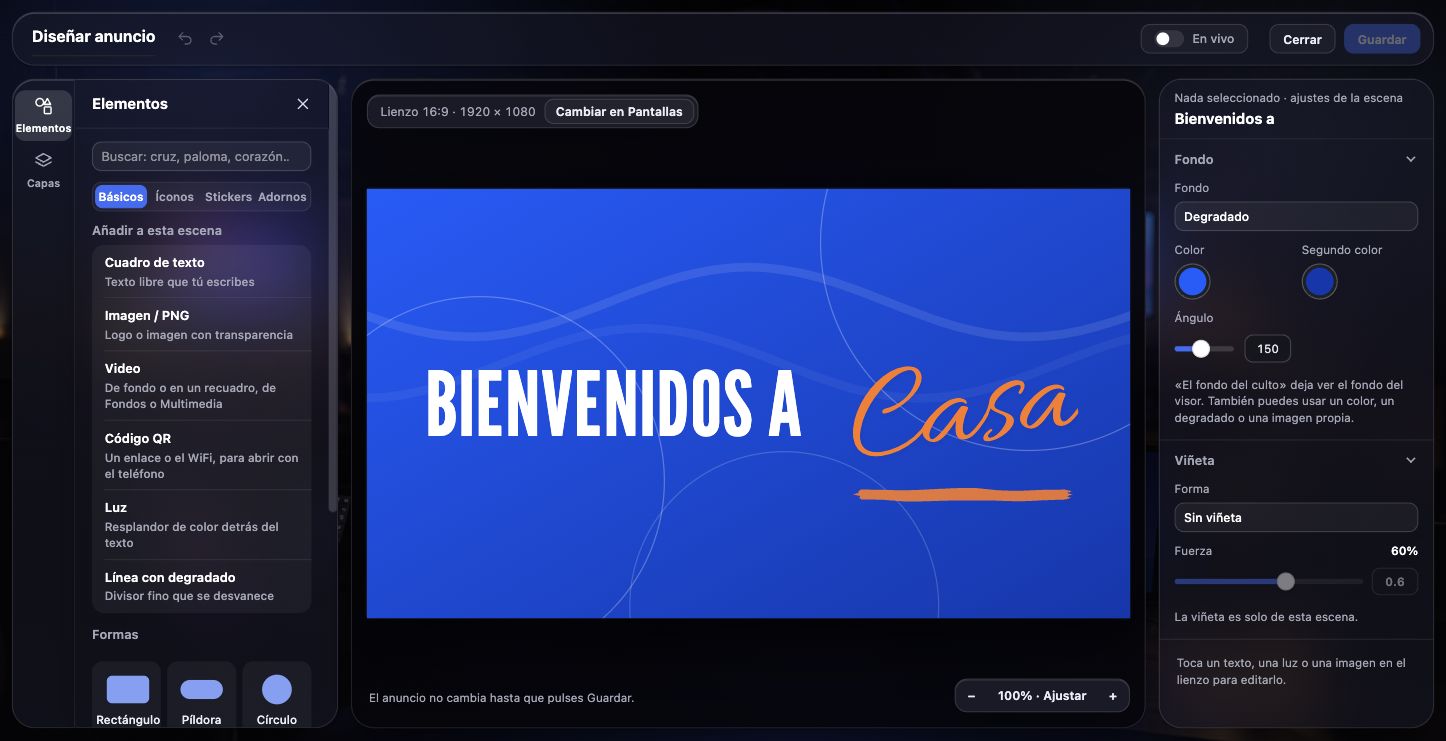
The announcement editor with the “Bienvenidos a Casa” welcome design, the tools for adding elements and the background settings

From the welcome to the next event

Pick a template, change the text and adjust the layout. Add images, video or a QR code in the same editor.

Try the editors in the demo →
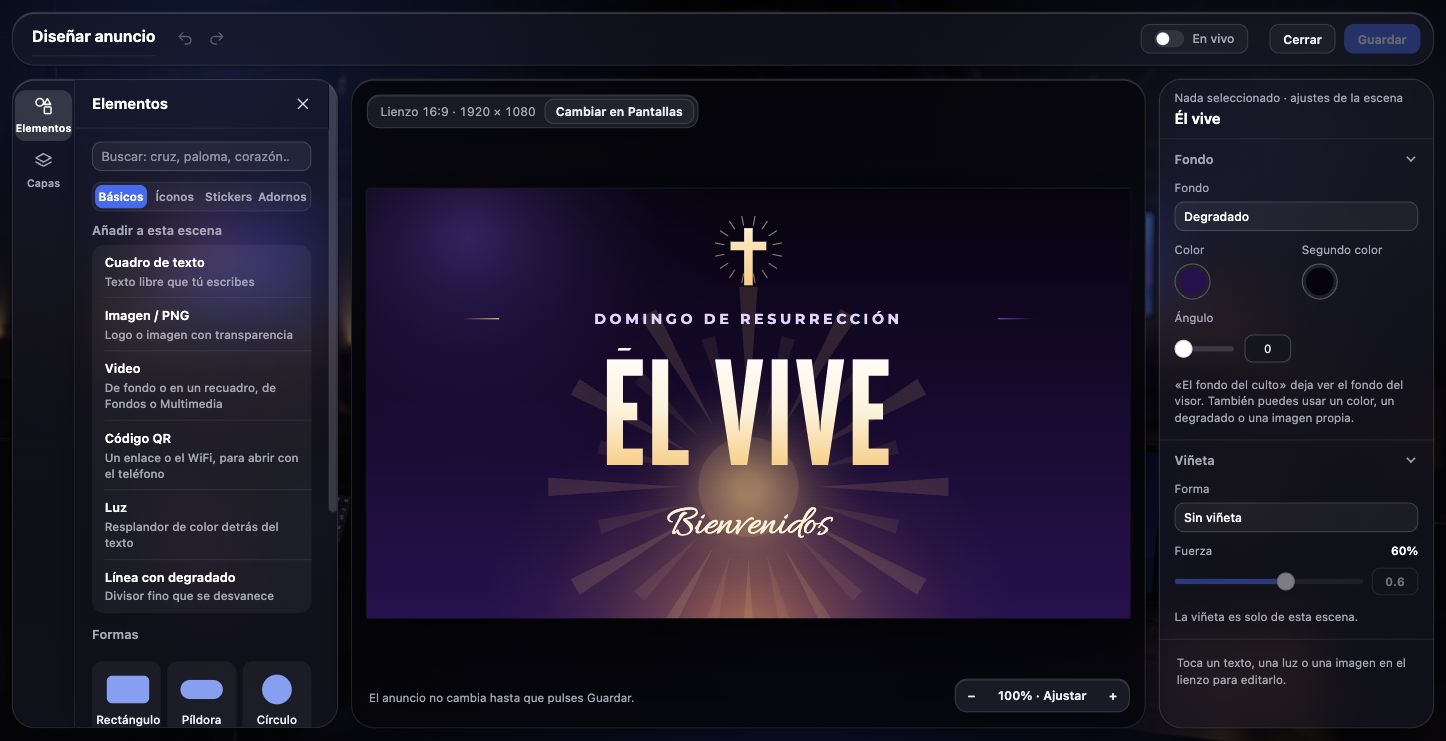
The Easter template open in the announcement editor, with the words “Él vive” and “Bienvenidos”

A design for every celebration

Welcomes, events and verses for Christmas and Easter. Change the text and fit each design to your church.

Browse the templates in the demo →
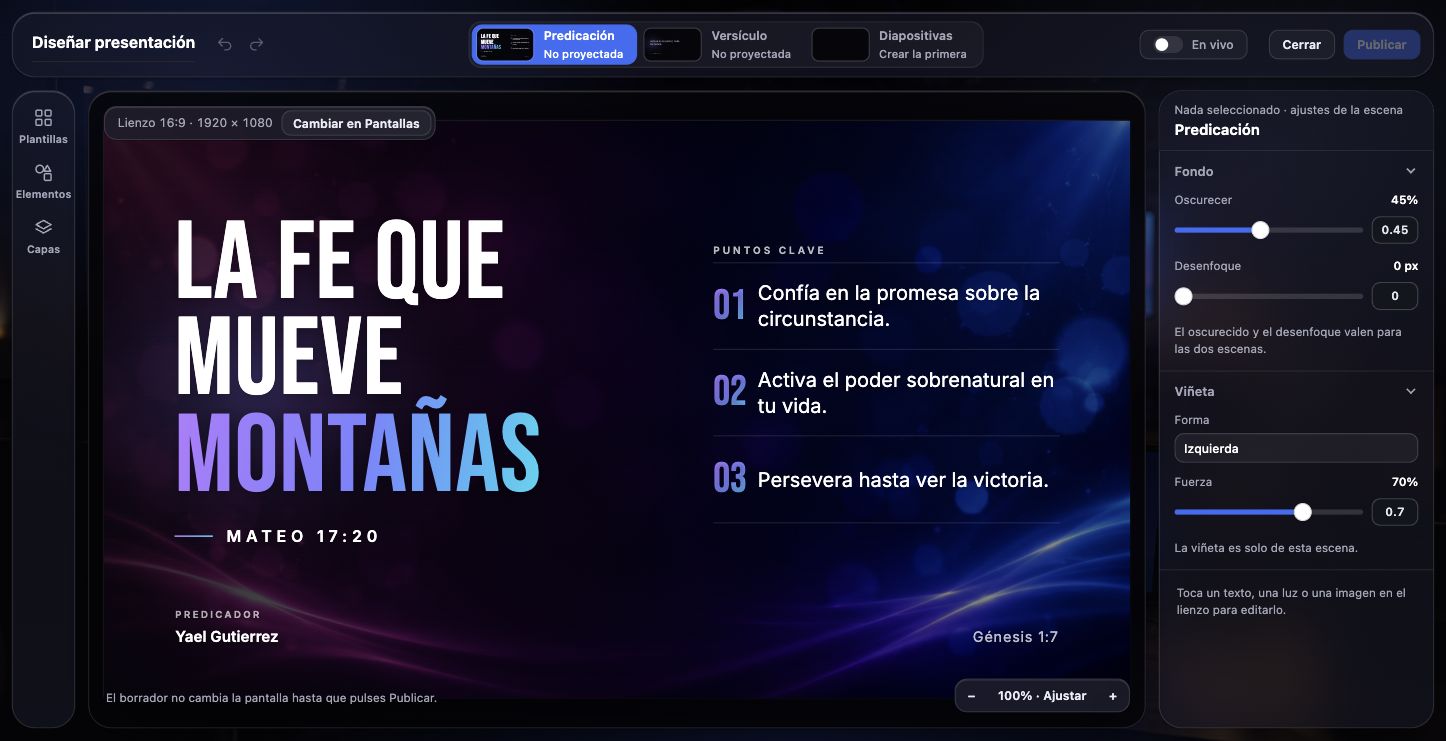
The Sermon editor with the title “La fe que mueve montañas,” three sermon points and the scene settings

The message, in your own style

Lay out the title, the points and the Scripture references in a visual editor. Work on a draft and publish the design when it’s ready; until then, what’s on screen stays as it is.

See Sermon Mode →

Everything your service needs

From the first song to the sermon’s last verse, in one app built for the media team.

Sermon Mode

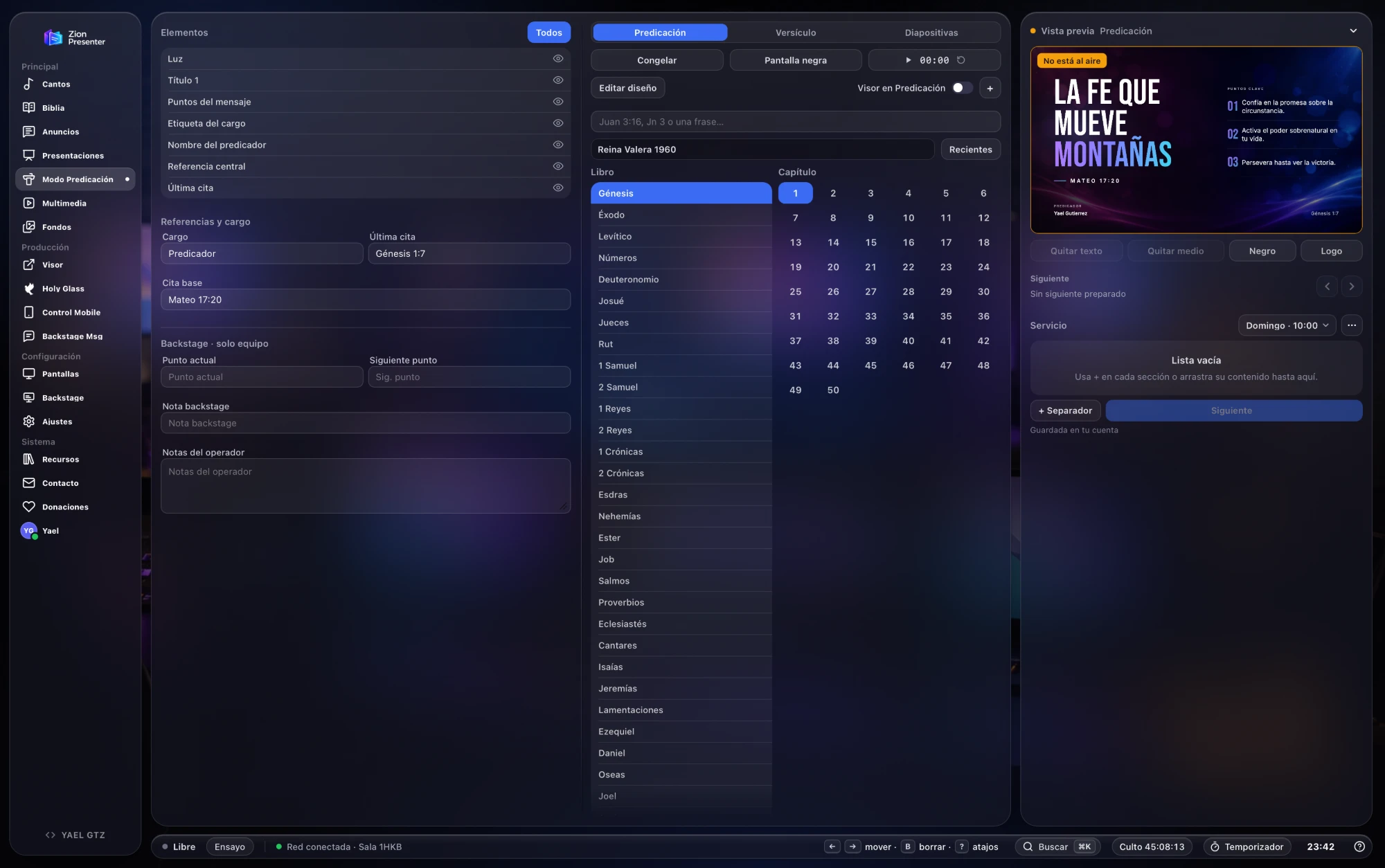
Follow the sermon on screen: the title, points that appear one at a time, Scripture references and the preacher’s name. Design the presentation your way in a visual editor and apply it when it’s ready, without interrupting what’s on screen.

See Sermon Mode
The Sermon Mode panel with the message elements, Bible search and a preview of “La fe que mueve montañas”
filter_hdr

Revelation and purpose

Zion stands for the mountain of spiritual encounter. It’s more than software: it’s a bridge, built so the technology fades away and the message builds up the heart with clarity and craft.

ZION Remote

Scan the QR code and take control. Run Bibles, songs and Unsplash backgrounds from your phone, in real time.

Bibles built in

BSB, WEB and ASV in English, plus NTV, RV1960 and more in Spanish, all with fast, smart search.

Stage display

A monitor made for the preacher. Its layout follows what you’re presenting: songs, Bible or sermon. It shows the current slide and the next one, a clock and countdown timers, and it receives private or urgent messages. In Sermon Mode it shows the current point, the next one and the team’s notes.

What people say about Zion

Ministries and churches that have changed the way they present with Zion Presenter.

Loading reviews from the community…

Frequently asked questions

The technical answers, before you start.

Do I need internet to use Zion Presenter? expand_more

Not strictly. Zion Presenter works over your local network (Wi-Fi), so you can connect your devices and run the projection even if the church has no internet connection. You only need internet to download a few things, such as Unsplash backgrounds.

Does it work with OBS Studio and livestreams? expand_more

Yes. The Zion Presenter display, Sermon Mode included, sends its picture with native transparency (alpha channel). Capture it in OBS Studio or vMix and the text sits cleanly over your cameras, with no green-screen (chroma key) filters to set up.

Can I run the projection from my phone or tablet? expand_more

Yes, with ZION Remote. Scan the QR code with your phone and you control the whole service: switch Bibles, move through the songs and change backgrounds without being tied to the computer.

Are there hidden costs or a premium plan? expand_more

No. Zion Presenter is 100% free, with no ads and no subscriptions. It was made to bless church media ministries and make their work easier.

Install Zion Presenter

Free, no ads, and it updates itself.

Switching from another app? Bring your songs and Bibles

Zion Presenter Desktop

Your whole service in one app: songs, Bible, announcements, media and the new Sermon Mode, which shows the sermon’s title, points and Scripture references in a design you make your own. It includes a stage display for the preacher, a transparent output for OBS Studio, local or networked displays, and control from your phone (iPhone and Android) with a QR code.

Downloads for Windows and macOS.

Zion Presenter installs on a Windows or macOS computer.

Open this page on your computer to download it. You can send yourself the link:

32-bit Windows, or no Microsoft Store? Download the installer (.exe)

First time? See the installation guide

new version 5.1.0 · all in one, local and over the network

Installation guide

First time only. After that, Zion Presenter updates itself.

Windows

  1. Click Download for Windows. Zion Presenter Installer.exe downloads.
  2. Open it and wait for it to finish: it installs Zion Presenter from the Microsoft Store.
  3. Open Zion Presenter from the Start menu.

Windows Firewall: if it asks about Zion Presenter, check Private networks and choose Allow. Networked displays and the phone remote need it.

With the .exe installer: unzip the .zip file and open the installer. If you see Windows protected your PC, choose More info and then Run anyway.

macOS

  1. Click Download for macOS and open the .zip file in Downloads. It unzips on its own.
  2. Drag Zion Presenter to the Applications folder.
  3. Double-click to open it. The first time, macOS says it can’t verify the app: choose OK or Done, never Move to Trash.
  4. Open System Settings → Privacy & Security, scroll down to Security and, next to the notice about Zion Presenter, click Open Anyway. Confirm with your password or Touch ID.
  5. Open Zion Presenter again and choose Open. You only do this once.

Local network: if macOS asks whether Zion Presenter can find devices on your local network, choose Allow. If you declined, turn it on in System Settings → Privacy & Security → Local Network.

On macOS 13 or 14 you can also right-click the app in Applications, choose Open and confirm with Open.